Configuring Camera Settings with RX-PAD Teams Admin
AudioCodes camera settings, as reflected in the RX-PAD (or touch screen) UI, are synchronized with Microsoft Teams Room camera settings. This means that users can access them from the RX-PAD, instead of the Teams Admin Center (TAC).
|
➢
|
To adjust camera settings through Teams Admin: |
|
2.
|
Under ‘Device admin settings’, scroll down and tap Teams Admin Settings. |
|
3.
|
Tap Teams Admin Settings, then tap Devices. |
|
■
|
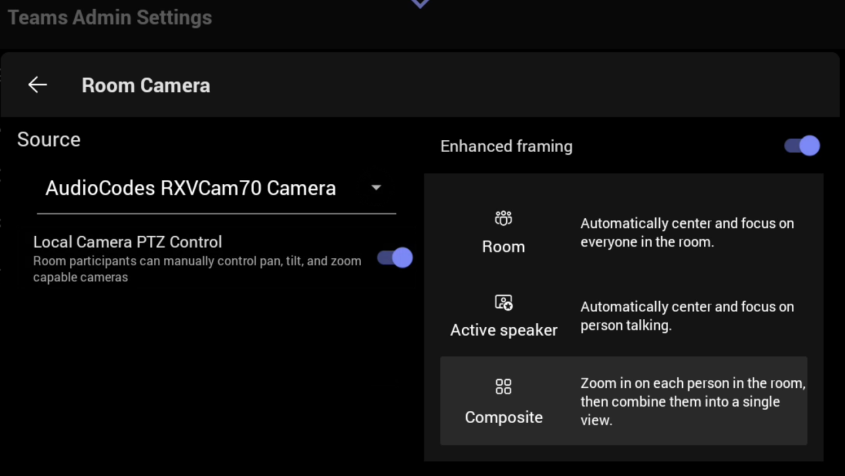
To configure room settings for a camera, tap Room Camera, select the relevant camera, and configure settings. |
|
■
|
To set up a camera for content sharing, tap Content Camera, select a camera, and configure it as required. |
Content Camera Framing on a Whiteboard describes how to use the Content Camera option to share a whiteboard using an RXVCam10 camera.